Sync Kolab
SyncKolab was written to add kolab functionality to thunderbird. It reads a selected Imap folder and synchronizes it with the local address book and calendar.
It has been tested under Thunderbird for Windows and Linux.
If you find any bugs please check the synckolab bugzilla on: http://synckolab.mozdev.org/bugs.html

What is Kolab?
What it does is, that it loads all your contacts (from a selected address book) as well as events and todos (from the selected calendar), and synchronizes them with a selected imap folder. Where every contact is stored as an vcard and every event,todo as iCalendar. For more information http://kolab.org/
The idea behind this is, that you can now have your contacts+calendar entries stored on the imap server. so you can actually have the same addresses on more than one computer. The kolab project has a groupware server that uses imap to exchange calendar entries and vcards. But you can also setup simple sharing in your office if you have f.e. cyrus by symlinking shared folders.
Getting the source
The source is included in the xpi. You can check it out in your profile directory under extensions/{571CFACF-0F7D-49b4-BD77-E6FC7B209ADC}/chrome/content/ or if you unzip the xpi (just rename it to .zip and use you favorite unzip util)
STATUS
To V 0.5.0
- Configuration: multiple address books/calendars to folder: DONE
- Syncing more than one address book/calendar: DONE
- Lightning Support: DONE
- Task support: DONE
- deleting of events/contacts: DONE
- Kolab2 xml Format: DONE
- testing with different kolab 1+2 clients: 80%
- Auto synching on start/shutdown (with the dialog hidden)/during intervals: DONE
- translation (de/en): DONE
To V 1.0.0
I think I should be able to reach V1 within a month (depending on my time), except some of the testing since I do not have only linux or windows systems.
Installation
SyncKolab 0.4.34+
Step 1: Download the lightning plugin then the
extension (use "rightclick/save as" otherwise firefox will try to install it)
Step 2: Open Thunderbird and use Tools/Extensions then install the downloaded calendar and the synckolab xpi
Step 3: Restart Thunderbird
Step 4: Configure the plugin

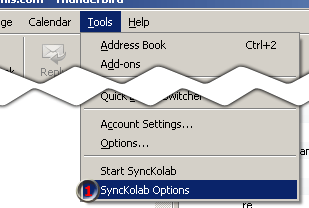
(1) will open the configuration wizard
Optional Step 5: get the icon


rightclick on the icon bar (2) (next to Stop) go to customize and drag the "Sync Kolab" Icon (3) to the
bar (4)
Step 6: click the icon or menu entry and the sync will start
Optional: Since you cant drag the button into lightning, try the Custom Toolbar extension and create a new toolbar there.
MAKE SURE YOU READ THE RELEASE NOTES OF THE VERSION!!!
Configuration Wizard

(2) Choose a configuration display name. Make sure you do not use any special characters (including "-,.+# ) as name. If you entered a non-existant valid name, the next button will become clickable.

(3) Select an imap account. If you do not see anything in the account box, you probably do not have an imap account. Ask your Internet Provider or System Administrator for an IMAP Account.

Select which kind of data you want to sync. Calendar and Tasks will only be selectable if you installed the lightning extension.

For each data-type (Contacts, Calendar, Tasks) you will see a similar wizardpage.
(4) select the adress book/calendar you want to use for syncing
(5) select if you want the (prefered) xml/kolab format or the vcard/ical format. It is recommended to use the xml format because the vcard/ical format is very outdated and not as clearly specified.
(6) select the folder that should be used for sync. Make sure you specify a different folder for calendar/adress book and tasks, otherwise the sync may fail
(7) The checkbox is only important for shared folders where you have read-only access. This makes sure synckolab does not try to write any data into the imap folder
Once you configured all of this the next Button will become clickable and take you to the next page.
Configuration

(1) will open the configuration wizard (if its the first time you use synckolab) or the configuration dialog if you already have a configuration.
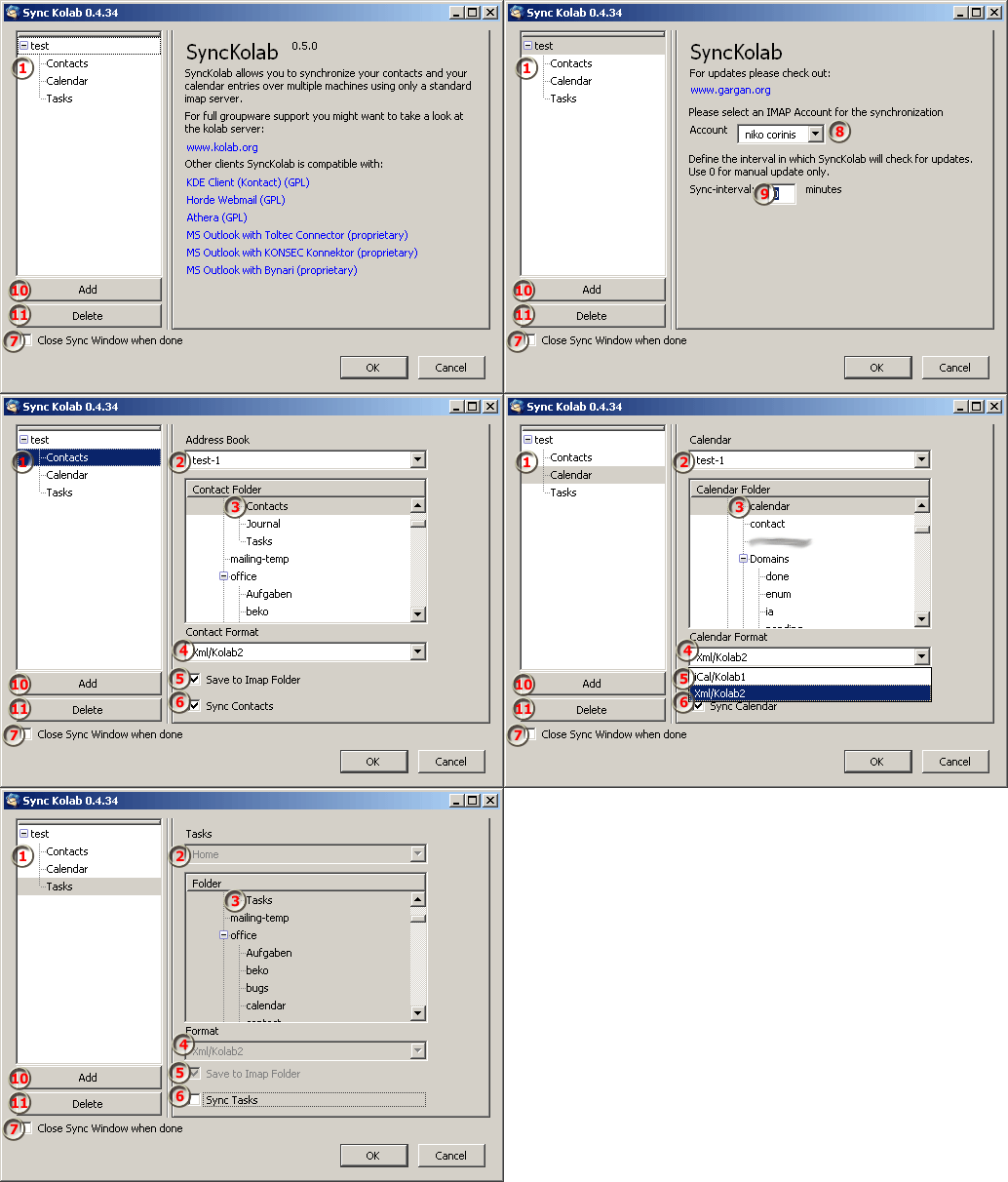
- Here you see all your defined configurations. Under each configuration your find your sync-datapoints (clicking on an item will open one of the ocnfiguration screens as shown in the images)
- This dropdown box lets you select the calendar/adressbook used for syncing
- In the list of folders, select an imap folder to sync with
- Contact Format: Select the (prefered) xml/kolab format or the vcard/ical format. It is recommended to use the xml format because the vcard/ical format is very outdated and not as clearly specified.
- Save to Imap Folde: The checkbox is only important for shared folders where you have read-only access. This makes sure synckolab does not try to write any data into the imap folder uncheck this box. This will overwrite the local data on each sync.
- Sync: Unchecking this box means that you do not want to sync the data at all.
- Close Sync Window when done: unchecking this will keep the sync window open after a successfull sync
- Account: Select the imap account which should be used for sync. Make sure that you configure the folder correctly after changing this or there will be errors
- Sync Interval: The sync interval is 0 per default (do not sync automatically). You can change this to the number of minutes between each sync. If you want auto-sync use 5-10 Minutes for autosync in a workgroup. Depending on the internet connection and imap server you can decrease this number.
- Add: Click here to open the configuration wizard for a new configuration
- Delete: this will remove the currently selected configuration
How does Sync Kolab sync your entries?
For those interested here is a short explenation (pretty technical) on how Sync Kolab actually works.
When a sync is started (doesnt matter if its a calendar/task or adress book sync):
- get a list of all messages in the imap folder (only headers, which are cached locally. Thunderbird also makes sure that new messages are included)
- check each message header with a local database of the previous sync for a change. Message size, date and subject are used there (subject is the key value)
- if something changed or the message is new, download the message and strip everything except the message body (xml/ical/vcard). Save this part in the local sync database (=the file system)
- parse the message body into a adress book card/calendar event/task (lets call it CUR)
- get the id from CUR and check the local address book/calendar if there is an entry with the same id (lets call it ENTRY)
- if we did not find an ENTRY, save CUR in the adress book/calendar and continue
- if we found an ENTRY, make a comparison between CUR, ENTRY and LOCALDB (the entry stored in the local sync database (file system) from a previous sync)
- if CUR=LOCALDB but ENTRY!=LOCALDB -> we know we changed something locally (ie. changed the name) so update ENTRY on the server (update=delete and readd), also update the LOCALDB on the filesystem
- if CUR!=LOCALDB but ENTRY=LOCALDB -> we know the server entry changed, so we have to update ENTRY and LOCALDB
- id CUR!=LOCALDB!=ENTRY -> we know we have a local change AND soemone changed the server entry -> ask what we should do
- if CUR=LOCALDB but ENTRY is missing -> we know it has been deleted locally, so delete the entry on the server
- remember all entries already processed (so we dont check it twice)
- now go through all local entries (ENTRY) (except the one we already processed) and check:
- if ENTRY is in LOCALDB: delete it (means it has been deleted from the server since the last sync)
- if ENTRY is not in the LOCALDB: add it to the imap server
- finish up (liek make all new messages unread, and run compact to make sure its all on the server)
A few Remarks:
- if you uncheck "write to IMAP", nothing will be written on the imap server. So whatever you change locally (delete/modify entries) will result in messages "update on server" or "delete on server", but that wont happen. Next sync you will get "delete locally" "update locally" messages (since nothing changed on the server, but locally you had changed). This is because the sync DB needs two syncs to be in sync again
- the "ignore entries older than XXX" applies for the timestamp on the messages AND for the calendar entries (enddate is used there). -1 will just sync all entires
- the sync interval set to 0 will still produce debug messages (like "starting sync...") which is only an indicator that the check for an interval is working (should happen once a minute) - nothing is syncd if this is the only message
- If you delete the snyc db from the filesystem (synckolab folder). Synckolab will try to resolve all differences automatically or ask you (will probably result in lots of "locally updated" messages)
- If you have problem (especially entries which are not synced at all or wrong) make sure to check in the javascript Error-Console (Fehlerkonsole) for messages. Until 1.0 debug is FULLY enabled to help track problems. There is also a pause button available that helps you track problems.
Known Issues/Todos
If you find any bugs please check the synckolab bugzilla on: http://synckolab.mozdev.org/bugs.html
Messages written to the server will appar as "new"fixed with 0.4.34
-
Heavy debug output
Some contact fields available through other kolab clients are not available because of the current shortcomings of the address book fixed with 0.4.33
there seems to be a problem on some machines that makes the switching of folders after a sync unstable - restart tbird fixes it. fixed with 0.4.34
There is no support for todos/tasks yet fixed with 0.5.0
- If you get the "Mailaccount not found"-message please try one of the following solutions and drop a line to synckolab(q)mozdev.org mailing list:
- Make sure you got a working imap connection
- delete ALL configruation lines with synckolab out of your prefs.js (make sure that thunderbird is closed before doing so)
- Try setting up synkolab agian...
- If that did not work check your prefs.js if following lines are present (if not add them):
user_pref("SyncKolab.<ContactConfigName>.ContactFolderPath", "imap://user@imapserver.com/<ContactFolder>");
user_pref("SyncKolab.<CalendarConfigName>.CalendarFolderPath", "imap://user@imapserver.com/<CalendarFolder>");
- If it still did not work please check for any messages in your javascript console and report to the mailing list
- If you have multiple systems which are already (more or less) in sync with each other and you sync with synckolab, it will create duplicates. To avoid this either:
you sync your entries (even tough you then have most entries 4 times) and then use something like: Duplicate Contact Manager to clean out the dupes
or
(if you know 100% that all entries on all machines are the same):
You sync with ONE machine - so you have all the entries on the server, then you delete the adresses on the other machines and sync so synckolab will create the entries for you.
Planned features
completely revamp configuration: wizard style dialogs and automatic folder finding/creation: with 0.4.34
full translation of configuration and messages with 0.4.34
auto-sync- will be added to sync on start whenever thunderbird starts up (or a short time afterwards) with 0.4.34
re-occuring sync: sync every 5/10 minutes if configured (shared folder/groupware feature) with 0.4.34
- Sync-with file-system folder option
- better conflict resolution for tasks/calendar entries
a button to sync the address book or calendar separately.
prerelease notes of cvs version
For Thunderbird 3.0a users:
Because of the new "Secure Update" Resitrictions the install of the nightly will fail.
In order to still use the most recent synckolab add following to your prefs.js:
user_pref("extensions.checkUpdateSecurity", false);
Also right now it doesnt work with all tbird3 builds (there are some bugs which prevent certain functionality)
* Added prefer-mail-format to contacts (XML Format)
* contact now displays displayname if no name/surname is given
* calendar now correctly writes/reads sync db file (speedup)
* calendar finally syncs correctly (bad error in database file)
* added seamonkey to the installable targets
* mail format changes recognized
* successfully tested calendar sync with thunderbird 3.0a1
* added seamonkey target application
* hu-HU translation added
* added possibility to use -1 as sync time to sync ALL entries
* fixed #1801: multiple attached cards/xmls are now handled correctly
* fixed Problems with newlines on parsers (two newlines made the parser cut off the xml)
* fixed a problem that sometimes prevented multipart messages from being parsed as xml correctly
* base64 errors fixed (if the =NUM was in the text it was accidently used as base64)
* added option to specify debug level (default:warning - set to DEBUG if you got a problem)
You can get a cvs built version from here.
Beware that this may break all you contacts/calender entries, altough we try to create stable nighlies..
Nightly builds now show their date in the option and install file
Changelog:
Release Notes
This is apretty big release since < 0.4.34.
In case you have problems:
- uninstall synckolab
- remove all lines containing synckolab from your prefs.js (in your thunderbird profile folder)
- remove all *.hdb files from your profile folder and the synckolab subfolder
- install 0.6.0 and configure everything
Changelog:
* renamed global variables to remove side effect with other extensions
* added check for the "imap-deleted" flag
* huge speed increase by using hashmap instead of array for internal calendar/contact database (about 500 entries/minute)
* reduced cpu usage and removed deadlocks (also due to hashmaps)
* changed flags for temporaray files (now use 0600 instead of 0666) so they arent world readable
* added priority flag for todo/agenda
* fixed little bug that prevented additional info files to be written correctly
* fixed location for cache folder (might result in a longer wait for first sync - again)
* fixed delete
* prepared code for 3.0a
* fixed problems with calendar sync
Older Release Notes
Contact and Help
In case you find a bug or have any suggestions on what to add, you should subscribe the mailing list on mozdev.org .
In the wild...
I started a few threads around the globe on different sites during development. If you are interested in some insight you can check them out.
This one is for those who have ideas on how I overcome some of my biggest problems: open a tb message in read/write mode
Antoher problem I ran into (which could have been avoided if the rewrite stuff had worked): Copying mail folder content from temp folder to imap
I took some of the code from the TB Attachment Tools and TB Header tools for the writing of messages. You can get those pretty usefull extensions from Frank DiLecce (Ausdilecce).